



Kontakt 8 Library Not Loading? Complete Fix Guide (Step-by-Step)

Kontakt 8 Library Not Loading? Step-by-Step Fix Guide for Producers
If your Kontakt 8 library is not loading or showing inside your DAW, you’re not alone. Many producers face issues like missing libraries, activation errors, or database problems after installing Native Instruments Kontakt 8. In this complete troubleshooting guide, you’ll learn exactly how to fix Kontakt 8 library issues quickly and safely.
What’s New in Kontakt 8?
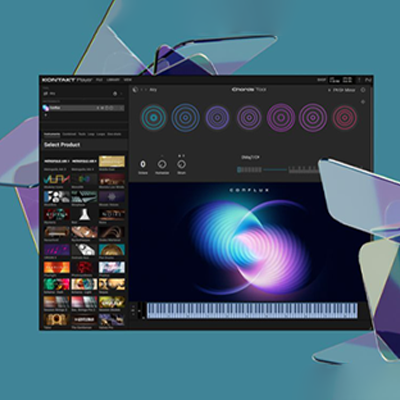
Native Instruments Kontakt 8 brings a major evolution in sampling and virtual instrument technology. This release is packed with intelligent music creation tools, enhanced sound design capabilities, and seamless hardware integration, making it one of the most powerful versions ever released.
Why Kontakt 8 Library Not Loading Happens
There are several reasons why Kontakt 8 libraries fail to appear:
- Incorrect library path
- Native Access activation issue
- Database not refreshed
- DAW plugin scan error
- Library incompatible with Kontakt 8
- Corrupted installation
Understanding the root cause helps you fix the issue faster.
Fix 1 – Check Library Installation Path
Step 1: Open Native Access
Go to Native Access and confirm your library is installed.
Step 2: Verify Content Location
Make sure the library folder location matches what Kontakt expects.
If you moved the folder manually, Kontakt may lose connection.
Fix 2 – Library Not Showing in Kontakt 8 Browser
If your library installs but doesn’t appear:
- Open Kontakt 8
- Click Settings
- Refresh Library Database
- Restart DAW
Fix 3 – Activation or Demo Mode Problem
If Kontakt 8 shows demo mode:
- Make sure you’re logged into Native Access
- Confirm serial activation
- Restart system
If activation fails, uninstall and reinstall via Native Access.
Fix 4 – DAW Plugin Scan Issue
Many times the problem isn’t Kontakt — it’s your DAW.
For FL Studio:
- Go to Plugin Manager
- Rescan Plugins
For Ableton:
- Enable VST3 path
- Rescan plugins
For Logic Pro:
- Revalidate plugin
After rescanning, restart DAW.
Fix 5 – Library Compatibility Issue
Not all older Kontakt libraries are fully compatible with Kontakt 8.
Check:
- Is it Kontakt Player library?
- Does it require full version?
- Is it cracked/incomplete file?
Always use official version to avoid loading errors.
Advanced Troubleshooting
If none works:
- Delete Kontakt database folder
- Clear cache
- Reinstall Kontakt 8
- Update to latest version
This fixes 95% of deep loading issues.
Why Using Official Kontakt 8 Matters
Many loading problems happen due to unofficial or modified versions.
Using genuine Native Instruments Kontakt 8 ensures:
✔ Proper activation
✔ Stable performance
✔ Full library compatibility
✔ Regular updates
If you want zero errors and smooth workflow, always use licensed version.
Ready to unlock the full power of sampling and sound design?
Buy Native Instruments Kontakt 8 today and get instant download access with secure activation. Avoid compatibility issues, demo mode restrictions, and missing features by using the official full version.
Upgrade your production workflow now.
Usually due to incorrect path, activation issue, or database refresh problem
Go to Settings → Refresh Database → Restart DAW.
Most libraries work, but some older ones may need updates.
Activation problem or incomplete installation via Native Access.
If basic troubleshooting fails, reinstalling usually fixes the issue.
Key Takeaways
- Kontakt 8 library loading issues can arise from incorrect paths, activation errors, or database refresh problems.
- To resolve these issues, check the library installation path, refresh the library database, and ensure proper activation.
- Some older libraries may not be compatible with Kontakt 8, so always use official versions for best results.
- If basic troubleshooting fails, consider advanced options like deleting the database folder or reinstalling Kontakt 8.
- Using genuine Native Instruments Kontakt 8 provides stable performance, proper activation, and full library compatibility.